Permissions Analysis
Permissions Analysis is a graph-based permissions analysis tool that extends SAT's proven configuration security checks with comprehensive "who can access what resources" across your entire Databricks account.
Permissions Analysis may have incomplete and point-in-time data. Outputs are visibility and audit aids, not authoritative compliance determinations.
What Permissions Analysis does
Permissions Analysis transforms the Databricks permissions into a queryable graph database, enabling you to:
- Query Access Patterns: Find all resources a user/group/service principal can access—including indirect access via group membership and parent resource inheritance
- Reverse Lookup Security: Discover all principals (users, groups, service principals) that have access to a specific resource
- Detect Escalation Paths: Identify privilege escalation risks by finding paths from any principal to admin roles (Account Admin, Metastore Admin, Workspace Admin, Catalog Owner)
- Analyze Impersonation Risk: Discover lateral movement opportunities where users can modify jobs or clusters that run as elevated service principals
- Generate Compliance Reports: Produce audit-ready reports showing over-privileged users, orphaned resources, and high-risk principals
Common Use Cases
Getting Started
Step 1: Run Data Collection
SAT automatically creates a "SAT Permissions Analysis - Data Collection" job when you consent to “Deploy Permissions Analysis” during your SAT installation and runs automatically on a schedule. To run it manually:
- Navigate to Jobs & Pipelines
- Locate "SAT Permissions Analysis - Data Collection"
- Select "Run Now"
- Allow 10-30 minutes for completion (varies by account size)
The collection job queries Databricks APIs to build a complete graph of your environment's identities, resources, and permission relationships.
Step 2: Analyze Permissions - notebooks
Once data collection completes, use the pre-built interactive notebooks in /notebooks/brickhound/:
| Notebook | Purpose | Sample Query |
|---|---|---|
01_principal_resource_analysis.py | Query access patterns | "What tables can john.doe@company.com access?" "Who can access XYZ resource" |
02_escalation_paths.py | Find privilege escalation paths | "Can this contractor reach Account Admin?" |
03_impersonation_analysis.py | Analyze impersonation risks | "Who can run jobs as elevated service principals?" |
04_advanced_reports.py | Generate compliance reports | "List all users with access to 50+ resources" |
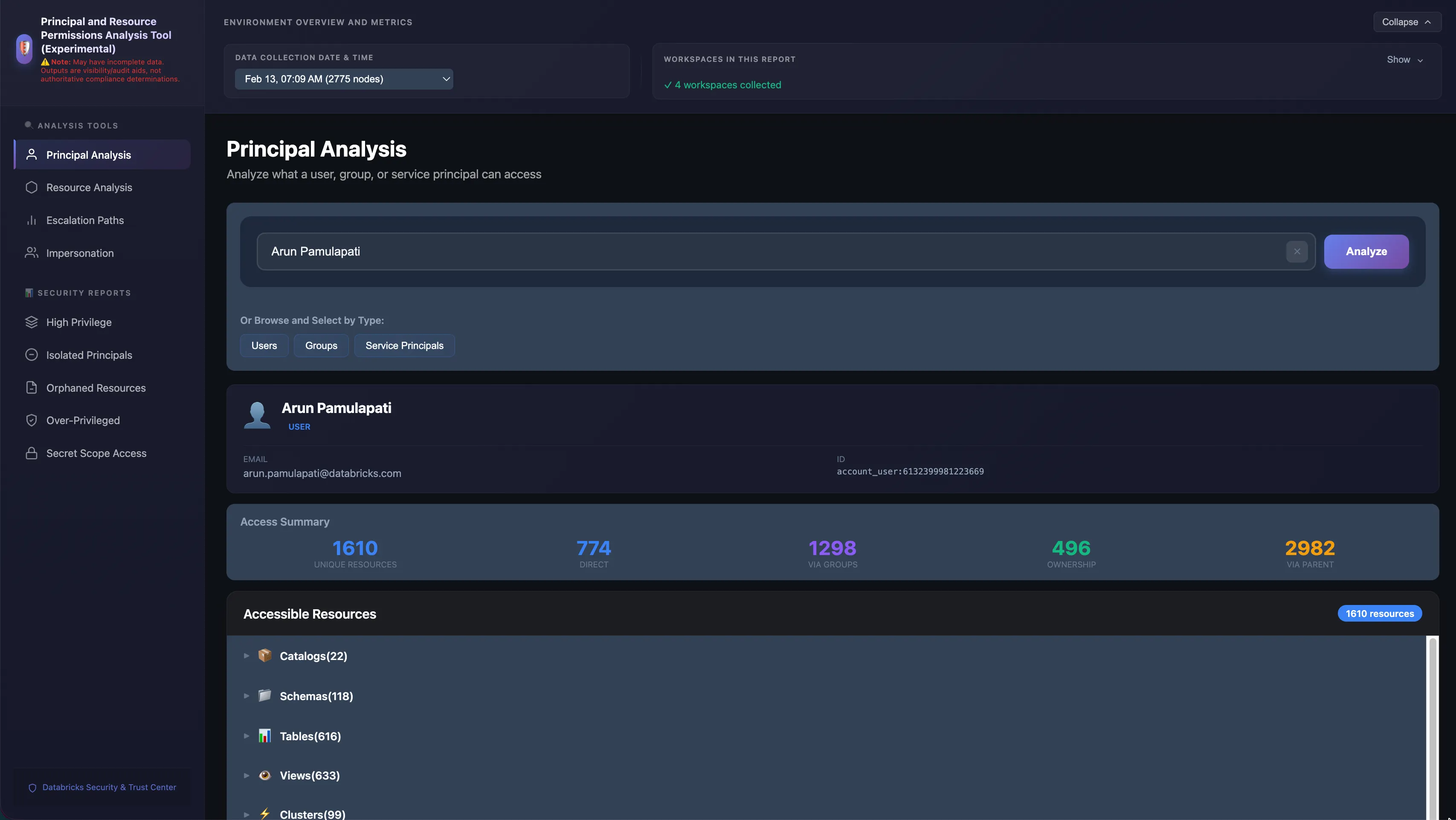
Step 3: Web UI (Recommended)
For a user-friendly interface, deploy the Permissions Analysis Databricks App:
Access at: https://<workspace-url>/apps/sat-permissions-exp
The web UI provides:
- Interactive search for principals and resources
- Escalation paths visualization
- Impersonation analysis reports
- Security reports including:
- Secret scope access
- High privilege principals
- Over-privileged users
- Orphaned resources
User Authorization
The app is intended for workspace and account admins. So that the app
cannot act as a privileged proxy beyond each caller's Unity Catalog
grants, the SAT install configures user authorization on the app
declaratively (via DABS or Terraform) — the sql scope required by
the Statement Execution API is set automatically. No manual UI step
is required.
When user authorization is configured, the app constructs a per-request
WorkspaceClient bound to the caller's forwarded OAuth token and Unity
Catalog enforces the caller's grants on the Permissions Analysis tables.
Required Unity Catalog grants (admin-only). Grant the users or
group who will run permissions analyses SELECT on the three Permissions Analysis
tables in the SAT analysis schema, e.g.:
GRANT SELECT ON TABLE `<catalog>`.`<schema>`.brickhound_vertices             TO `<admin_group>`;
GRANT SELECT ON TABLE `<catalog>`.`<schema>`.brickhound_edges                TO `<admin_group>`;
GRANT SELECT ON TABLE `<catalog>`.`<schema>`.brickhound_collection_metadata  TO `<admin_group>`;
Without these grants, opening the app shows a friendly banner naming the missing tables instead of a generic error.
Manual override. If you need to add or remove scopes manually, open the app in the Databricks UI (Compute → Apps → sat-permissions-exp → Edit → User authorization) and edit the scope list. The IaC default of
["sql"]is sufficient for normal use.SP fallback. If user authorization ever gets cleared (no scopes configured), the app automatically falls back to its service principal identity and a one-time warning is logged. Functionality is unchanged. Re-add the
sqlscope to restore per-user enforcement.
Upgrading from SAT 0.7.x
If you are upgrading an existing SAT install (where the Permissions Analysis app
ran without user authorization), each user who had previously opened
the app needs to re-consent once. They will see the friendly "missing
the sql scope" banner until they do. Three workarounds, easiest first:
- Open the app URL in a private/incognito window — fresh session, no cached consent, the platform prompts for consent immediately.
- Clear cookies for the workspace domain in the regular browser
(Chrome → site cookies for
<workspace>.cloud.databricks.com→ delete), then reopen the app. - Revoke the prior authorization from the user's profile settings if your workspace exposes a connected-apps list, then reopen the app.
New installs do not hit this — fresh installs declare
user_api_scopes: ["sql"] from the start, so the first user open
prompts for the right scope set automatically.
Key Capabilities
Query Access Patterns
Find all resources accessible by a specific principal, including:
- Direct permissions
- Group memberships (including nested groups)
- Inherited permissions from parent resources
- Service principal impersonation
Example Query: Determine what resources the principal john.doe@company.com can access.
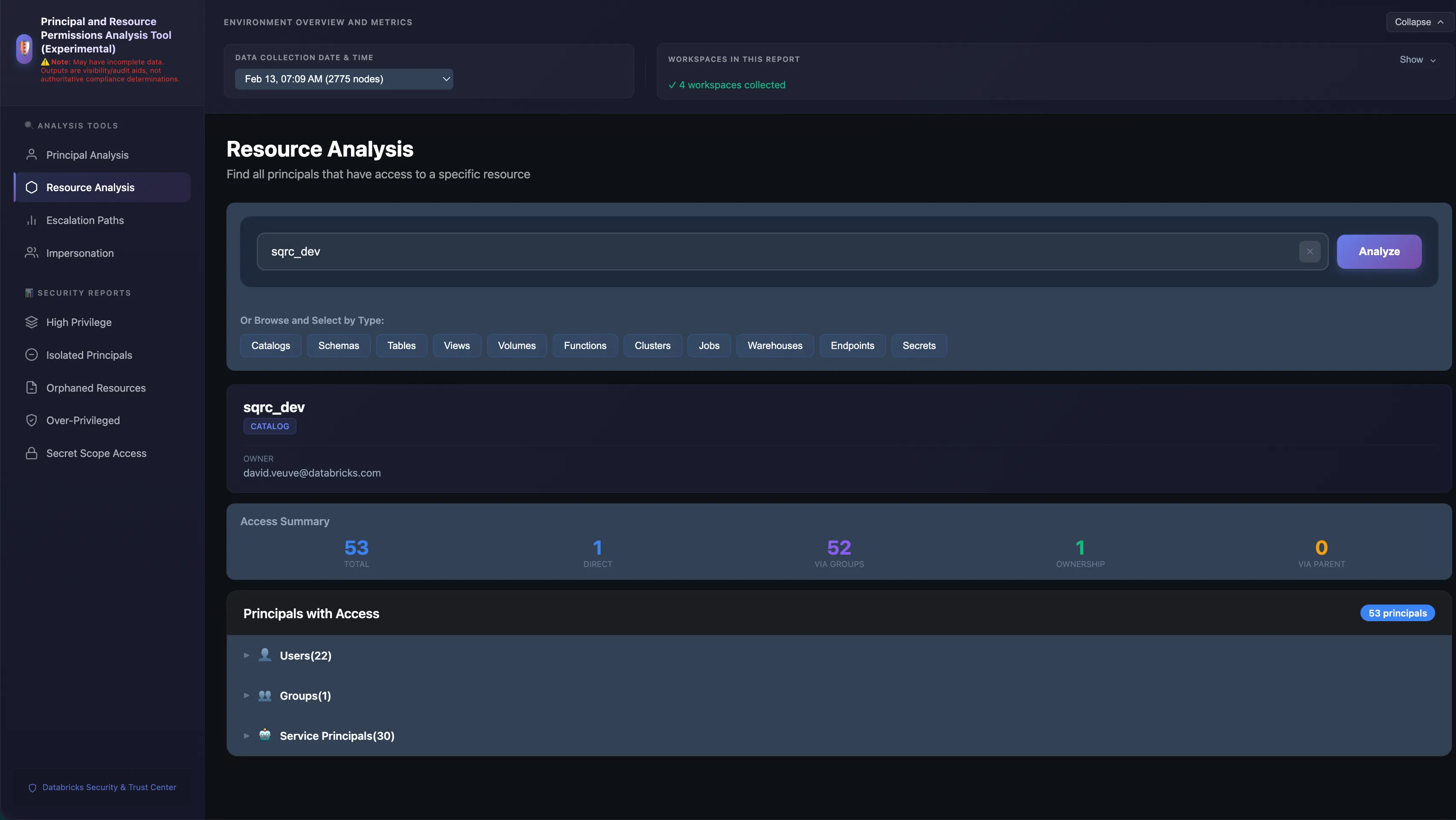
Reverse Lookup Security
Discover all principals with access to a specific resource:
- Users with direct access
- Groups with access (and their members)
- Service principals with access
- Inherited access paths
Example Query: Identify all principals that can access the production.finance.revenue table.
Detect Escalation Paths
Identify privilege escalation risks by finding paths to:
- Account Admin
- Metastore Admin
- Workspace Admin
- Catalog Owner
Example Query: Determine whether the principal contractor@external.com can reach Account Admin privileges.
Analyze Impersonation Risk
Discover lateral movement opportunities:
- Users who can modify jobs that run as service principals
- Service principals with elevated privileges
- Clusters configured to run as specific service principals
Example Query: Identify principals that can run jobs as elevated service principals.
Generate Compliance Reports
Produce audit-ready reports showing:
- Over-privileged users (access to 50+ resources)
- Orphaned resources (created by departed users)
- High-risk principals (multiple escalation paths)
- Secret scope access patterns
Best Practices
- Regular Data Collection: Run the data collection job regularly (weekly or bi-weekly) to maintain an up-to-date permissions graph as your environment changes.
- Web UI for Ad-Hoc Queries: Use the web UI for ad-hoc queries and quick access audits. Use the notebooks for automated reporting and compliance checks.
- Point-in-Time Data: Permissions data represents a point-in-time snapshot. For critical access reviews, ensure data collection has run recently.
Learn More
- Usage Guide - Instructions on running SAT workflows
- Installation Guide - Set up SAT and Permissions Analysis
- GitHub Issues - Report issues or request features